GoBricks custom colors
GoBricks sells seven colors that have no BrickLink equivalent. These five steps add them to Studio and make them work in import/export processes with .csv files. Everything here is free, and the converter runs in your browser, so your parts list is never uploaded anywhere.
1 Add the colors to Studio
Quit Studio first. Then pick whichever of these suits you — both make the same edit to the same file.
- Egg White
- Bright Pearl Gold
- Army Green
- Light Slate Gray
- Pink Purple
- Cool White
- Pale Gray
Paste them in — works everywhere
Copy the code, then open Studio’s color file and paste it at the very end. Click at the end of the last line, press Return once, then paste and save. The file is here:
Mac
~/.local/share/Stud.io/CustomColors/CustomColorDefinition.txt
In Finder press ⇧⌘G and paste the folder part to get there.Windows%LOCALAPPDATA%\Stud.io\CustomColors\CustomColorDefinition.txt
Paste that into the File Explorer address bar.590027 927 590027 GoBricks Egg White Egg White GoBricks Egg White #EFDBB2 1 Solid Colors 6 to_bl GoBricks 590037 937 590037 GoBricks Bright Pearl Gold Bright Pearl Gold GoBricks Bright Pearl Gold #D9963F 1 Pearl Colors 5 to_bl GoBricks 590041 941 590041 GoBricks Army Green Army Green GoBricks Army Green #555631 1 Solid Colors 12 to_bl GoBricks 590056 956 590056 GoBricks Light Slate Gray Light Slate Gray GoBricks Light Slate Gray #CBD3EB 1 Solid Colors 16 to_bl GoBricks 590064 964 590064 GoBricks Pink Purple Pink Purple GoBricks Pink Purple #DECDE7 1 Solid Colors 18 to_bl GoBricks 590091 991 590091 GoBricks Cool White Cool White GoBricks Cool White #FFFFFF 1 Solid Colors 22 to_bl GoBricks 590092 992 590092 GoBricks Pale Gray Pale Gray GoBricks Pale Gray #D9D9D6 1 Solid Colors 22 to_bl GoBricks
Or run the installer
On Windows this is the easier route: double-click the
Download the installer pack.batand it does the edit for you. On a Mac the script is blocked by macOS — you will get “Apple could not verify it is free of malware”, and you have to open System Settings › Privacy & Security and press Open Anyway. Pasting the lines above is usually quicker.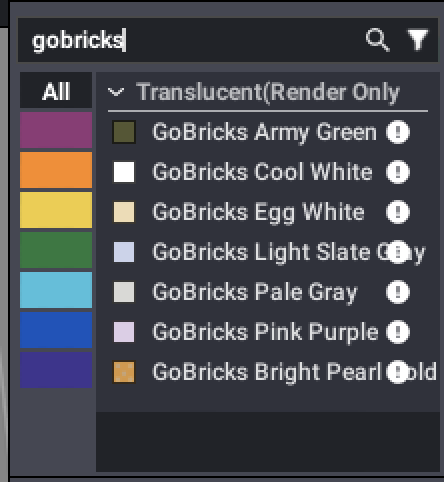
Start Studio again and search the Color Palette for “gobricks” — all seven are there. The warning marks mean BrickLink has no matching color, so they are expected here. 2 Build your model
Build as you normally would, using the GoBricks colors wherever you want them. They behave like any other color in Studio. One thing to know: a custom color lives on your own computer, so if you share the model with somebody who has not installed the pack, they will not see it.
3 Export your part list as CSV
In Studio, go to File › Export As › Export as PartsList… and save it as a CSV. It has to be CSV — BrickLink’s XML format has no way to name a GoBricks color, so an XML export loses them whatever you do afterwards.
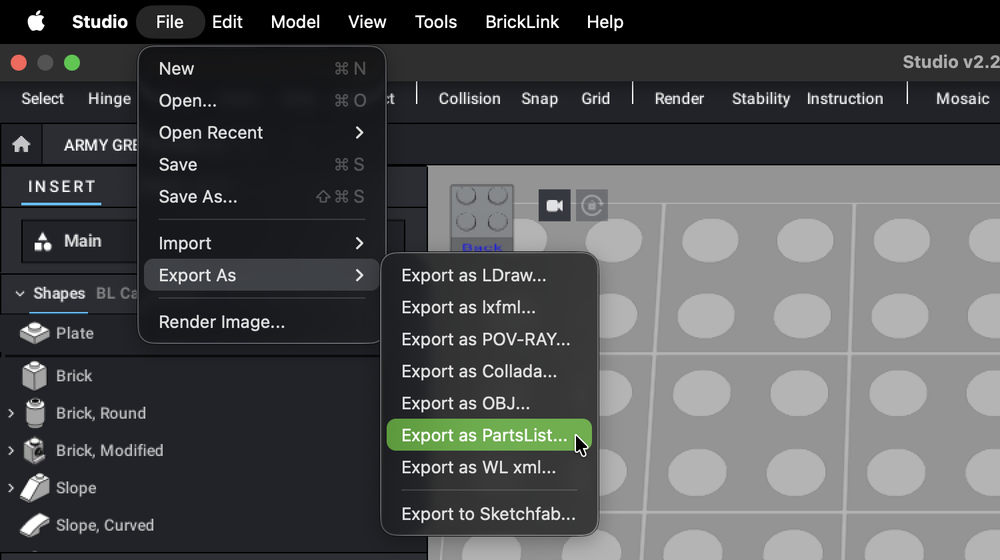
File › Export As › Export as PartsList…, then save it as CSV. 4 Convert it here
Choose the CSV you just exported and download the converted file. Parts in ordinary colors are carried straight across; parts in the seven GoBricks colors are rewritten into the product codes their uploader needs. Anything not in the GoBricks catalog is listed back to you rather than quietly ordered in the wrong color.
5 Upload it to GoBricks
Take the converted file to brickwith.com/en/part-list/upload and upload it as a CSV. Your parts appear in the right colors, custom ones included, ready to add to an order.
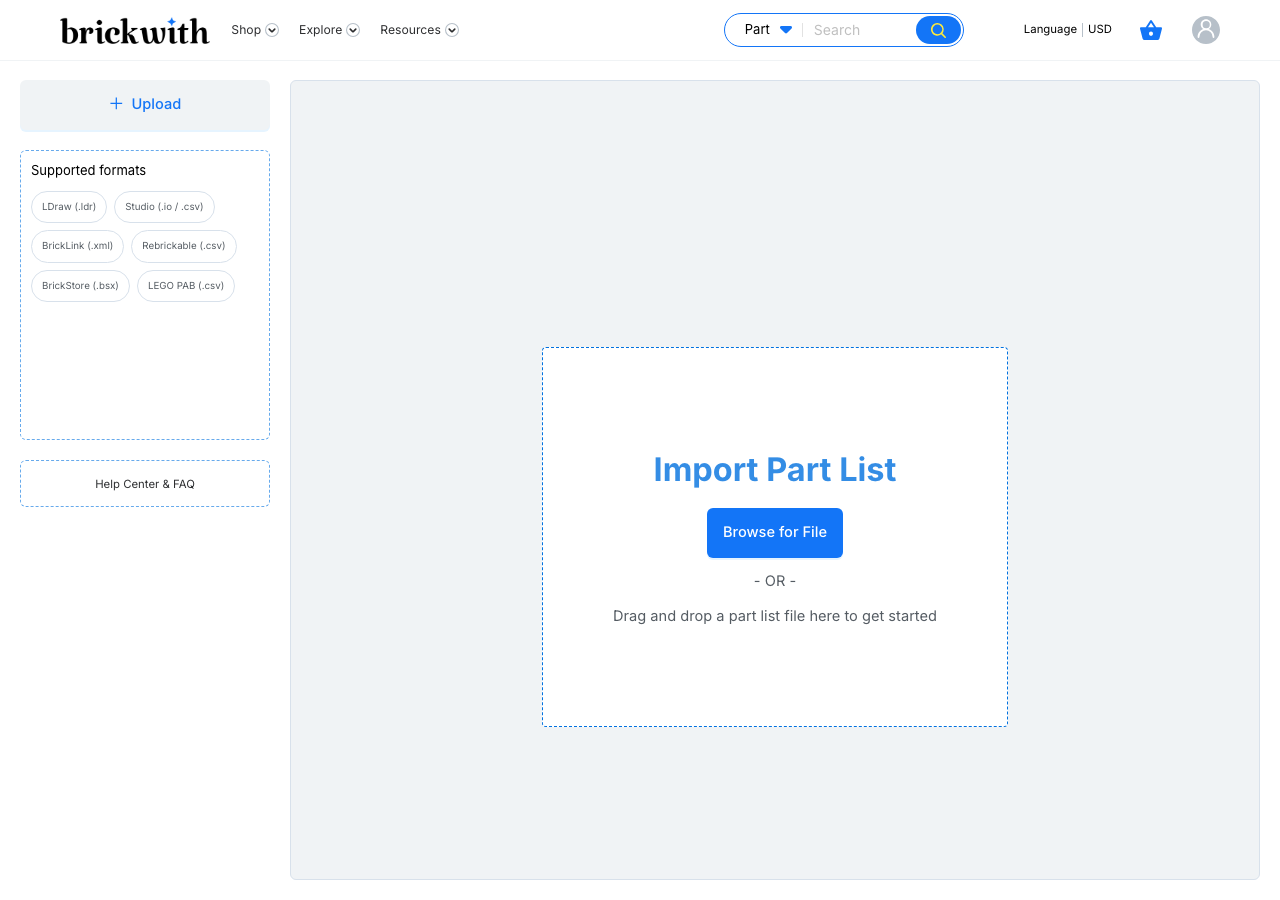
Upload the converted file as a CSV. The original Studio export will not work here — it is the converted one you want.
Color reference
Every GoBricks color with its number and hex value, and the BrickLink and LDraw numbers it corresponds to where one exists. The seven custom colors are listed first.
Open the color chartNotes
The colors carry a marker number in place of a BrickLink one, which is what lets the converter recognize them — it also means a part list taken straight to BrickLink will not find them, which is expected. Hex values and part numbers come from the GoBricks catalog. MackBricks is not affiliated with GoBricks or BrickLink.